Ready for the press: PDF/X, spot colors, overprint and lines in register
A PDF for the screen forgives a lot. A PDF for the press does not: the knife never cuts exactly on the line, the plates never meet exactly, and the print shop wants to know which inks you mean. These are the things that separate a file that looks right from a file that prints right, and they are where the last weeks of work went.
The result is that glu now writes files a print shop can take as they are, from nothing but HTML and CSS: no Lua, and no second tool between the layout and the press. Everything below is in glu v0.0.54.
A flyer in a few lines
Here is the head of an A6 flyer, in PDF/X-4, with 3mm bleed, crop marks, one spot color and black text that overprints the tint below it:
<meta name="pdf-format" content="PDF/X-4">
<title>Open day at the press</title>
<style>
@-bag-color blue { model: spotcolor; colorname: "PANTONE 300 C"; c: 100; m: 44; y: 0; k: 0; }
@-bag-color tint { model: cmyk; c: 4; m: 4; y: 16; k: 0; }
@-bag-color ink  { model: cmyk; c: 0; m: 0; y: 0; k: 100; overprint: yes; }

@page {
    size: a6;
    margin: 56mm 12mm 12mm 12mm;
    bleed: 3mm;
    marks: crop;
    background-color: tint;
}
body { color: ink; }
</style>
A bare glu flyer.html turns this into a file that Adobe Acrobat’s
preflight accepts as valid PDF/X-4.
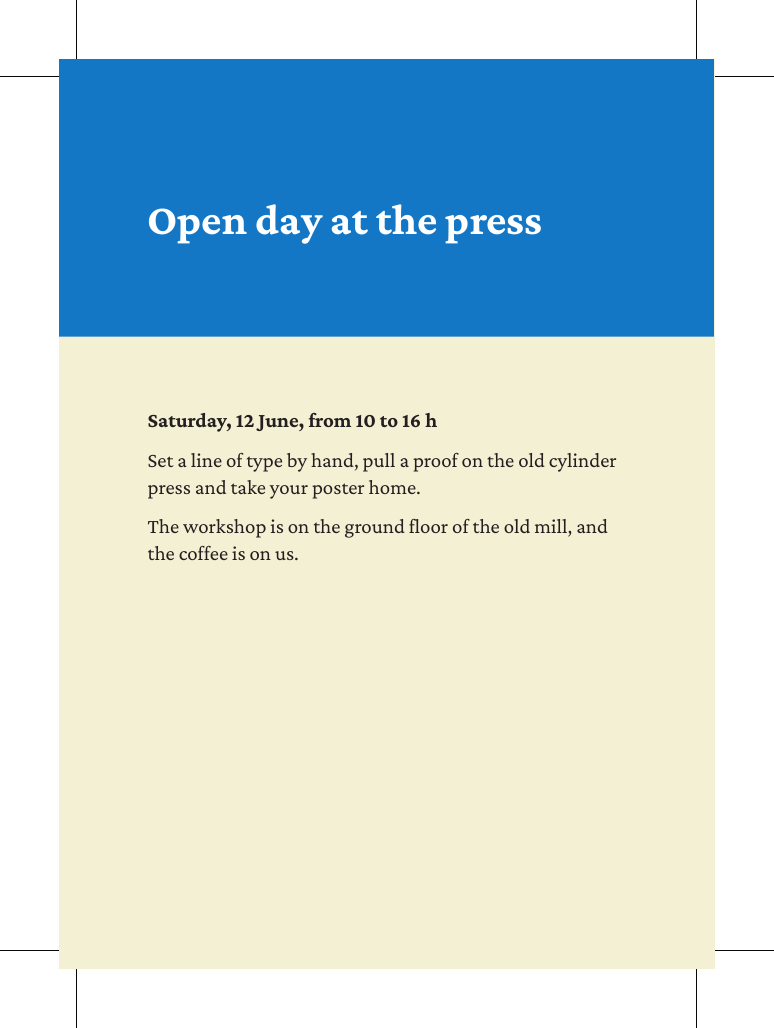
The how-to Prepare a PDF for the print shop walks through the complete file. The new chapter Print-ready PDF covers each part and starts with a checklist for the handover to the print shop.
PDF/X
PDF/X-3 and PDF/X-4 are conformance levels like PDF/UA and
PDF/A-3b: a <meta> element in HTML, a format: field in Markdown.
Both produce files that pass Acrobat’s preflight, and getting there
touched more of the stack than one might think: the output intent,
RGB content, and imported PDF pages, which carry resources of their
own.
The output intent says which printing condition the colors are meant for. glu embeds Coated FOGRA39 unless you load another profile. Colors and pictures in RGB are allowed and count as sRGB, so the print shop can convert them. Links do not exist in PDF/X, so glu leaves them out and says so in a warning.
The same work made PDF/A-3b files cleaner as well, and veraPDF validates them without any further setup.
Bleed and crop marks
Whatever reaches the edge of the page has to run past it, so a small
shift of the knife leaves no white strip. The @page descriptors
bleed and marks add that room:
@page {
    size: a6;
    bleed: 3mm;
    marks: crop;
}
size stays the trimmed size, and your layout does not move. The PDF
page grows around it, the page you described becomes the TrimBox and
the bleed the BleedBox. Page backgrounds run into the bleed by
themselves, and anything else gets there with a negative offset from
the corner of the trimmed page.
Colors, inks and plates
CMYK and spot colors get names with @-bag-color, so a change of ink
is a change in one place. A spot color is written as a Separation
with the name of the ink, and gets a plate of its own. The crop marks
print on every plate, spot colors included.
With overprint: yes a color prints on top of what is below it. Small
black text on a tint needs that: if it knocks out the tint, a slight
misregister leaves a white edge along the letters.
Overprint is invisible in a normal PDF viewer, so you want to see the plates. Ghostscript writes one image per ink:
gs -q -o plate.tif -sDEVICE=tiffsep -r100 flyer.pdf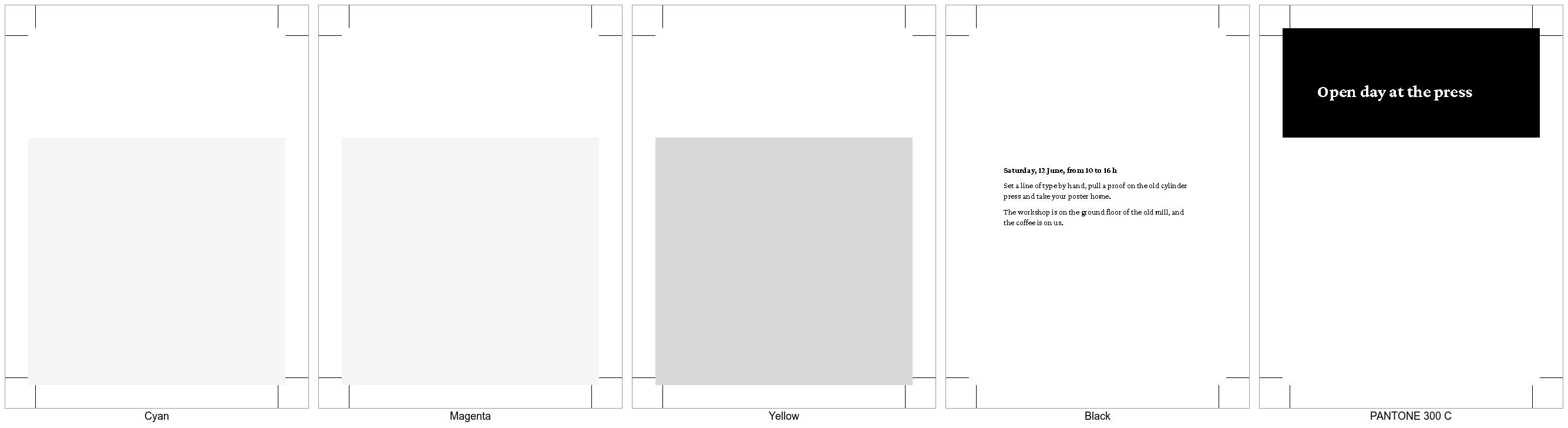
The yellow plate runs through below the text without a hole, so the black overprints. The band stands on the spot color alone. The crop marks are on all five plates.
Lines in register
The German word for this is Registerhaltigkeit, and it is one of the marks of a carefully made book. Lines are in register when they stand on the same heights: across the columns of a page, and on the front and back of a leaf. On thin paper the difference is plain, because the lines of the back shine through between the lines of the front unless they meet.
Getting there by hand is tedious, since every heading of another size and every margin moves the text below it, and the error stays to the foot of the column. In glu it takes one property:
body {
    line-height: 12pt;
    column-count: 2;
    line-snap: baseline;
}
h1, h2 {
    line-snap: none;
}
line-snap is the property from the CSS Line Grid draft. Every line of
running text now stands on a grid that belongs to the page, whatever
headings, tables and figures come between them.
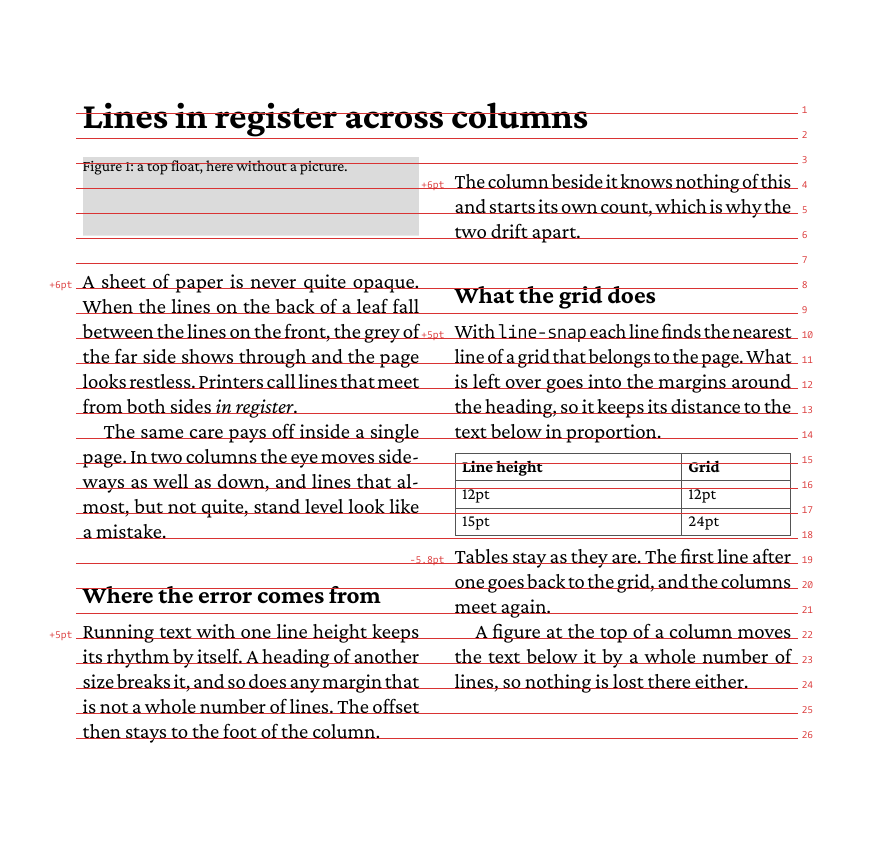
The red lines and numbers are the trace, switched on with
--trace linegrid. The small numbers on the left show how far a line
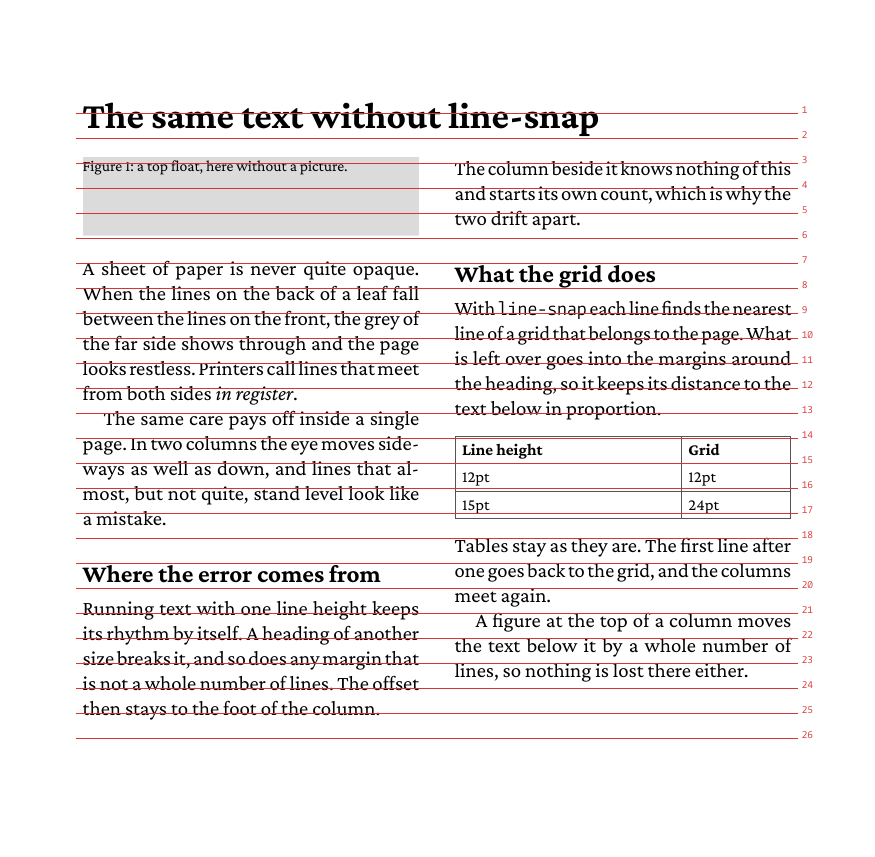
had to move to reach the grid. Here is the same text without the
property, with the grid still drawn:
The interesting part is where the rest goes. Between two snapped lines
there has to be a whole number of grid lines, and what is left over
goes into the margins between them, in proportion to them. A heading
with margin: 6pt 0 2pt and a rest of 4pt ends up with 9pt above it
and 3pt below it, so it keeps its relation to the text it belongs to.
The other cases are handled too. A top float takes a whole number of lines, so the text below it moves from line to line. A spanner across the columns does not break the grid. A table is not snapped, and the first line after it goes back to the grid. The how-to Keep lines in register across columns explains all of it, including what to do with text of another size.